
How to Use Your Own GIF in YouTube Comments (via Tenor)
Want to reply with a GIF you made yourself, such as a clip from your own channel, your pet, or an inside joke? YouTube doesn't let you upload a GIF file to a comment. But there is a route that should work: publish your GIF on Tenor, then find it in YouTube's GIF search.
In short: Make the GIF → upload it to Tenor with a unique tag → wait for Tenor to approve it → search for that tag in YouTube's GIF picker.
Why you can't upload a GIF directly
YouTube's GIF comments are powered by Tenor, Google's GIF library. When you post a GIF comment, YouTube stores a reference to a Tenor GIF rather than a file from your phone. That means:
- there's no "upload from device" option in the GIF picker;
- GIPHY GIFs and links to other sites don't work;
- only GIFs that Tenor rates as suitable for all audiences appear.
Developers who tried to attach other GIF files to comments report that YouTube drops the GIF and only the text gets posted.
So the way in is to get your GIF into Tenor's library first.
Step 1: Make your GIF
You can turn a short video clip into a GIF with our free video to GIF maker:
- Choose a video from your phone or computer.
- Set the start time and length. 2 to 4 seconds works best for reactions.
- Pick a width. 320px or 480px is plenty for a comment.
- Add a caption if you want a meme-style reaction.
- Tap Make GIF, then Download GIF.
Everything happens in your browser. Your video is never uploaded to our servers.
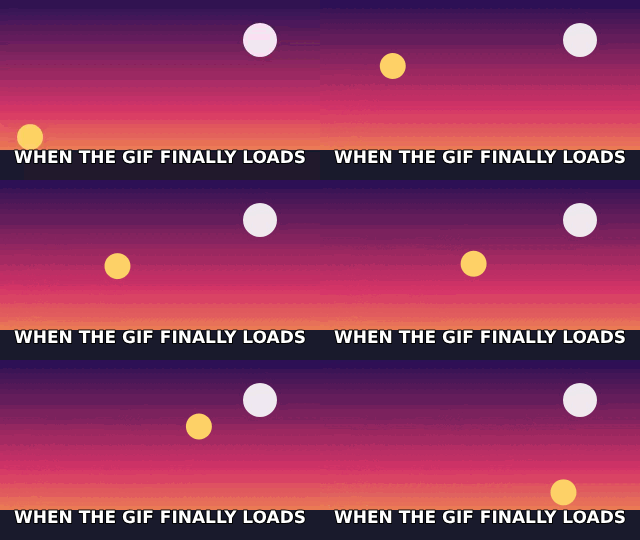
Example: a 2.5-second clip at 320px and 10 fps, with a caption. The GIF is 184 KB.
Tips for GIFs that get approved and look good:
- Keep it clean. YouTube only shows GIFs rated for all audiences, so avoid anything violent, sexual or offensive.
- Only use footage you own or have permission to share.
- Short, loopable moments work best.
Step 2: Upload it to Tenor
Tenor accepts uploads on tenor.com (on a computer) or through Tenor's GIF Keyboard app on iOS and Android. Tenor's help center says it accepts GIFs, stickers, MP4s, JPEGs and PNGs, and that you should only upload content you own or have permission to post.
When you upload:
- Add a unique tag that nobody else is likely to use, such as
yourchannelnameoryourname-wave. This is how you'll find your GIF later. - Add a few normal tags as well (for example
wave,hello) if you'd like others to find it.
Tenor profile features require a Google account.
About the Tenor API shutdown: Google shut down Tenor's public API for other apps in June 2026, but tenor.com is still online and YouTube still uses Tenor for GIF comments. We're checking whether Tenor accepts new uploads from everyone. See is Tenor shutting down?
Step 3: Wait for approval
Uploads aren't public straight away. According to Tenor's help center, it can take up to 48 hours for a GIF to be approved and published to its content library. Until it's approved, it won't appear in search, including inside YouTube.
Step 4: Find it in YouTube
- Open the YouTube app and go to the video or Short you want to comment on.
- Tap the comment box, then tap the GIF option.
- Search for your unique tag.
- Tap your GIF and post.
If your GIF doesn't show up in YouTube
- Wait the full 48 hours. Approval takes time.
- Check that it's public on Tenor. Search for your tag on tenor.com first. If it isn't there, it won't be in YouTube either.
- Check the content rating. YouTube hides GIFs that aren't rated for all audiences, even if they're on Tenor.
- Make sure you have GIF comments at all. If there's no GIF option in your comment box, see GIF button missing?
We're testing this route ourselves. YouTube hasn't documented how quickly newly uploaded Tenor GIFs appear in its picker. We'll update this guide with our results. If you try it, we'd love to hear how it went: support@youtubegifcomments.com.
Will direct uploads come later?
Possibly. YouTube's Data API changelog (September 30, 2026) describes a new field for "an image or animated GIF attached to a comment" and says the feature "will be available to all users in November 2026." YouTube hasn't said whether that will include uploading your own files. We'll update this page when it's clear.
Based on YouTube's announcements, Tenor's help center and public reports as of October 2026. YouTube GIF Comments is not affiliated with YouTube, Google or Tenor.